How to Tell If an iPhone AI App Is Actually Private
"Private" is a marketing word on the App Store, not a technical one. Four checks tell you whether an app means it.
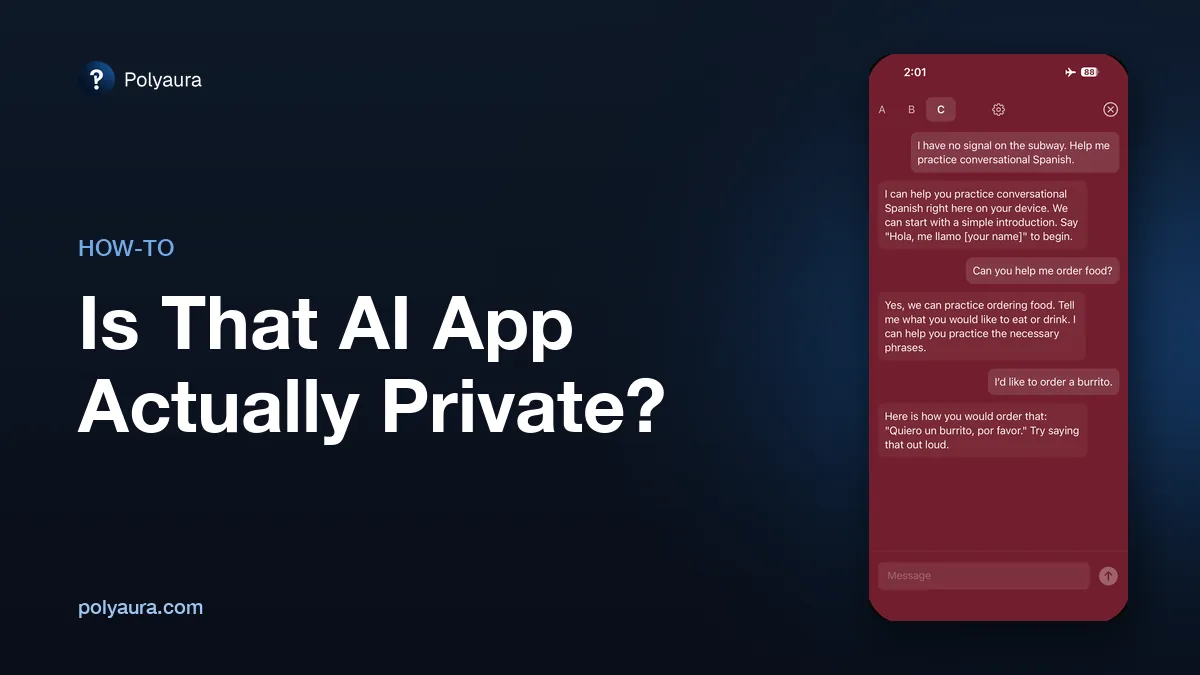
The fastest first check is to put your iPhone in airplane mode and send the app a message. If it answers, the model is running on your device. If it stalls, spins, or shows an error, it needs a server to answer — whatever the listing says. Answering offline does not show what the app sends once it is back online, though; the privacy policy and the App Store privacy label do.
Airplane mode on. Send a message. An app that answers is running the model locally; an app that cannot is a cloud app, no matter how it is described. Then read what its privacy policy says it sends when it is online.
Why the word "private" isn't enough
Almost every AI app claims to respect your privacy, and most are being honest about their intentions. But there are two very different things that claim can mean.
The first is a promise: your messages do go to a company's servers, and the company undertakes to handle them carefully — not to train on them, to delete them after a period, to encrypt them along the way. That can be entirely trustworthy. It is still a policy, it can change, and it depends on the company keeping its word.
The second is a structural fact: the model runs on your phone, so there is no server that ever receives the conversation. Nothing has to be promised about data that was never transmitted. That is what local AI makes possible, and it is the version the four checks below are testing for.
Four checks before you trust an AI app
1. Does it answer with the network off?
This is the quickest one, and it shows where the model runs. Turn on airplane mode, confirm Wi-Fi is off too, and send a message. A local model will reply as normal. Many on-device apps need one initial download before this works, so do the test after setup rather than on first launch. Passing it does not prove the app never sends anything: an app can answer offline and still upload chats or usage data once it reconnects, which is what checks 2 to 4 are for.
2. Does it require an account?
An account exists so that a server can associate requests with a person. An app whose model runs on your device has no particular need for one. A required sign-up before you can type anything is a strong hint that there is a server on the other end doing the work.
3. What does the privacy policy actually list?
Skip the reassuring opening paragraph and look for the specifics: what is collected, what is stored, what is transmitted, and to whom. Check the App Store listing's own privacy summary too. Vague commitments to "your privacy matters" with a long list of collected data types underneath are the pattern to watch for.
4. Does it describe where the model runs?
Apps that genuinely run locally tend to say so precisely — "on-device", "runs locally", "works offline", or a named model that is downloaded to the phone. Apps that avoid the question and speak only about encryption or security are usually describing how your data is protected in transit to their servers, which is a different claim.
What passing looks like
Cloak: Offline AI is built to pass all four. The model runs on the iPhone or iPad, so it answers in airplane mode; there is no account and no login wall; the app has no tracking and no third-party SDKs; and your conversations never leave the device. Besides the one-time model download, it sends Polyaura only an optional one-question setup survey and, if you turn them on, daily feature-use counts, as its privacy policy lists. It is a $1.99 one-time purchase in the US with everything included, and its device requirements are listed on the Cloak product page.
It is not the only app that passes. Several on-device iPhone apps are compared on exactly these points — accounts, pricing, offline operation, models — in the best offline AI apps for iPhone.
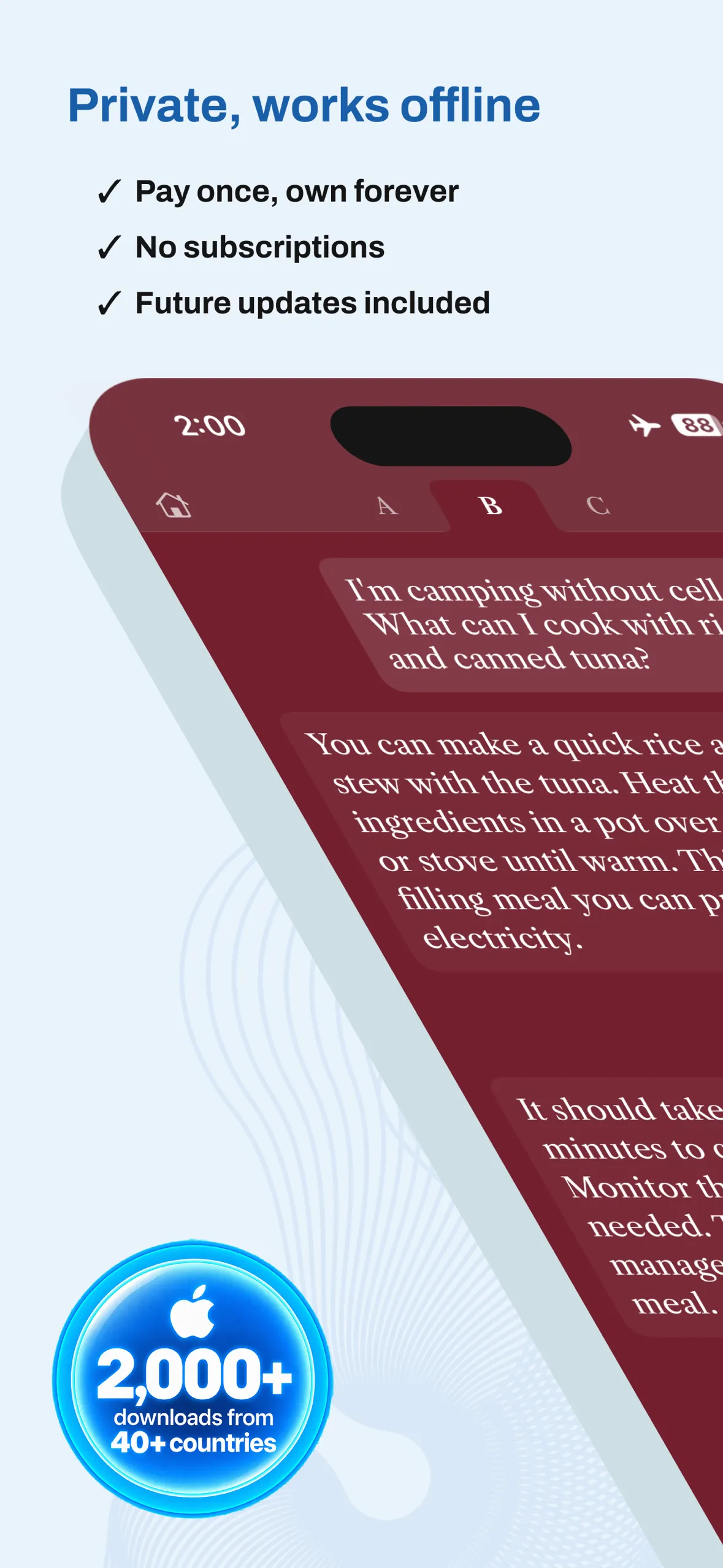
Cloak: Offline AI
Private chat, Voice Memos, and Recap. Runs on your device. $1.99 once.